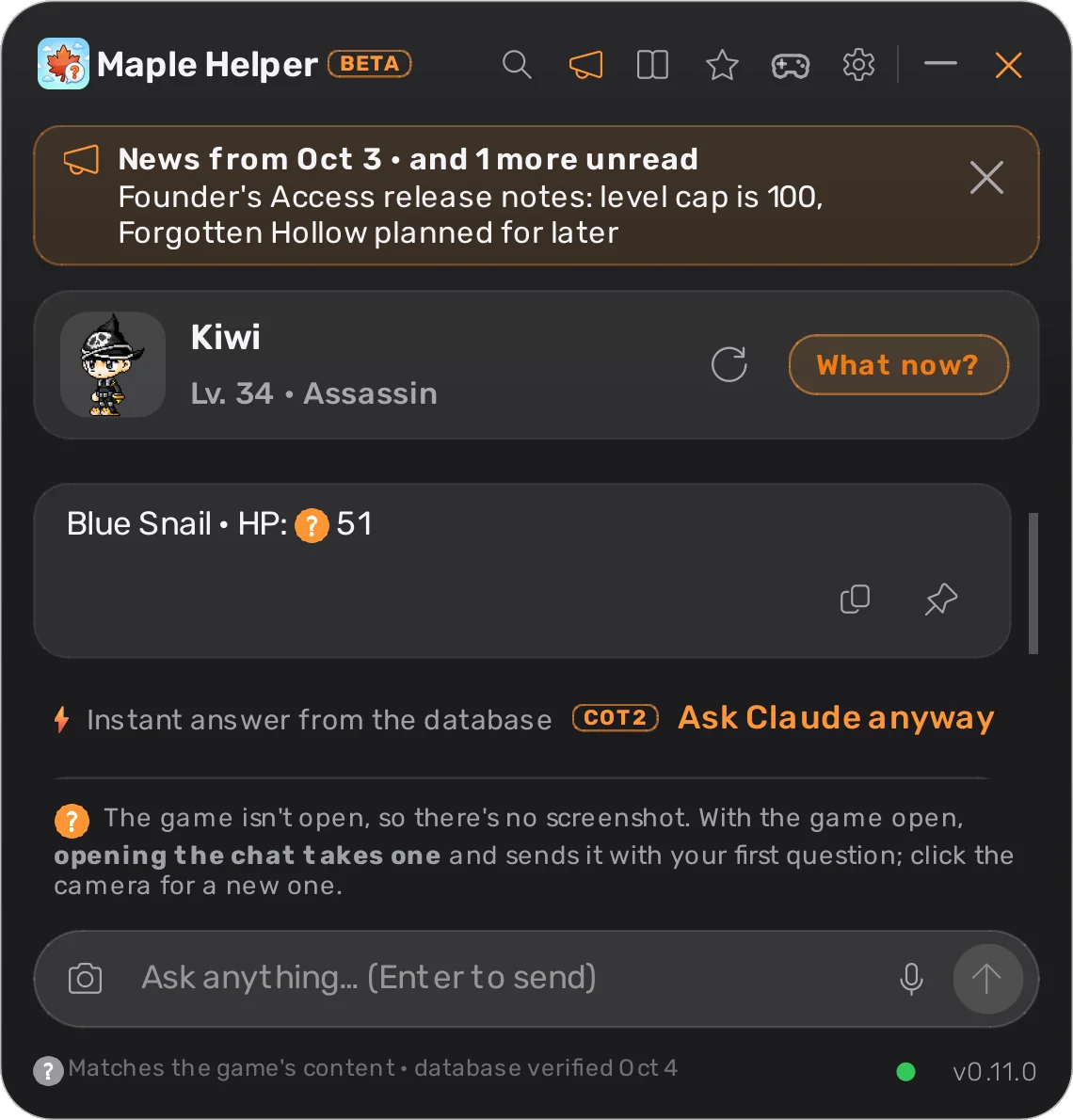
Instant answers
How much HP a monster has, what it drops, where an NPC is. Questions like these are answered in a second from the local database, without waiting for the AI.
Want the full explanation? One button sends the same question to your AI.
Free Windows and macOS Open source
Maple Helper is a chat window that opens over MapleStory Classic World with one click on its icon. Type a question in English or Hebrew and get an answer with pictures, based on the game's database and on what's on your screen right now.
Maple Helper is a desktop app. Open this page on the computer you play on to download it.
How it works
Click the Maple Helper icon next to the clock, and the chat opens over the game. Close it to keep playing.
Type, or tap the microphone and talk. When the chat opens, the app takes a screenshot of the game window and sends it with your question, so the answer fits what's happening in your game.
Simple questions, like a monster's HP or who drops an item, are answered instantly from the database on your computer. The AI you choose (Claude, ChatGPT, Gemini or Grok) answers the harder ones, using a MapleStory Classic database.
Features
How much HP a monster has, what it drops, where an NPC is. Questions like these are answered in a second from the local database, without waiting for the AI.
Want the full explanation? One button sends the same question to your AI.
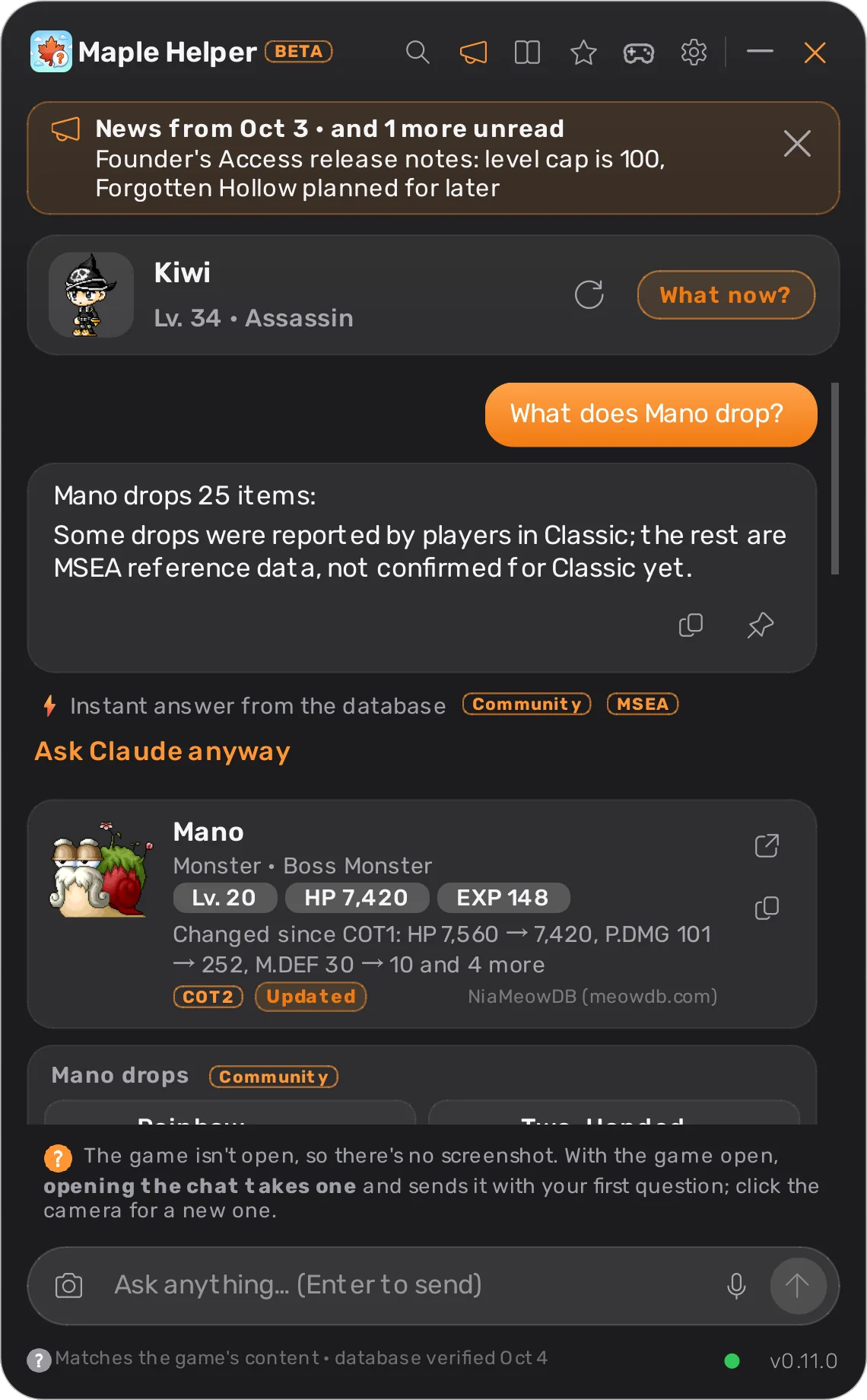
Monsters, items, maps, NPCs and quests show up as cards with a picture and stats. Tap a card to ask about it, like "where is it?" or "which one is easier for me?".
Star an item to add it to your list. Each item shows who drops it, lowest level first, and on which map.

The whole app runs in English or Hebrew, your choice, and game names stay in English even inside Hebrew sentences. Font size and answer length are adjustable too.

Guides for every class, grind maps, the EXP table, the damage formula and more, with skill and item icons, character art, tables and tips. In Hebrew too.
The guides that fit your character come first, and one button sends a question about the guide to the chat.

When the game database updates, you see exactly what changed: new monsters and items, drops added or removed, changed stats. If an item on your list gets a new drop, you'll be told.
No need to update anything by hand. When the AI answers, Maple Helper looks at the game screen and updates your level, job and character picture. Keep several characters, each with its own history.
Claude, ChatGPT, Gemini or Grok, on your own account or an API key. Switch any time in settings. The app installs each one's official tool for you, with the progress right in the app, and keeps it read-only and on the game: it can't change files or browse the web, and questions about anything else get a short no.
Press the microphone button, talk, press it again. Speech is transcribed on your computer with ivrit.ai models, which understand Hebrew too, and the recording never leaves it.
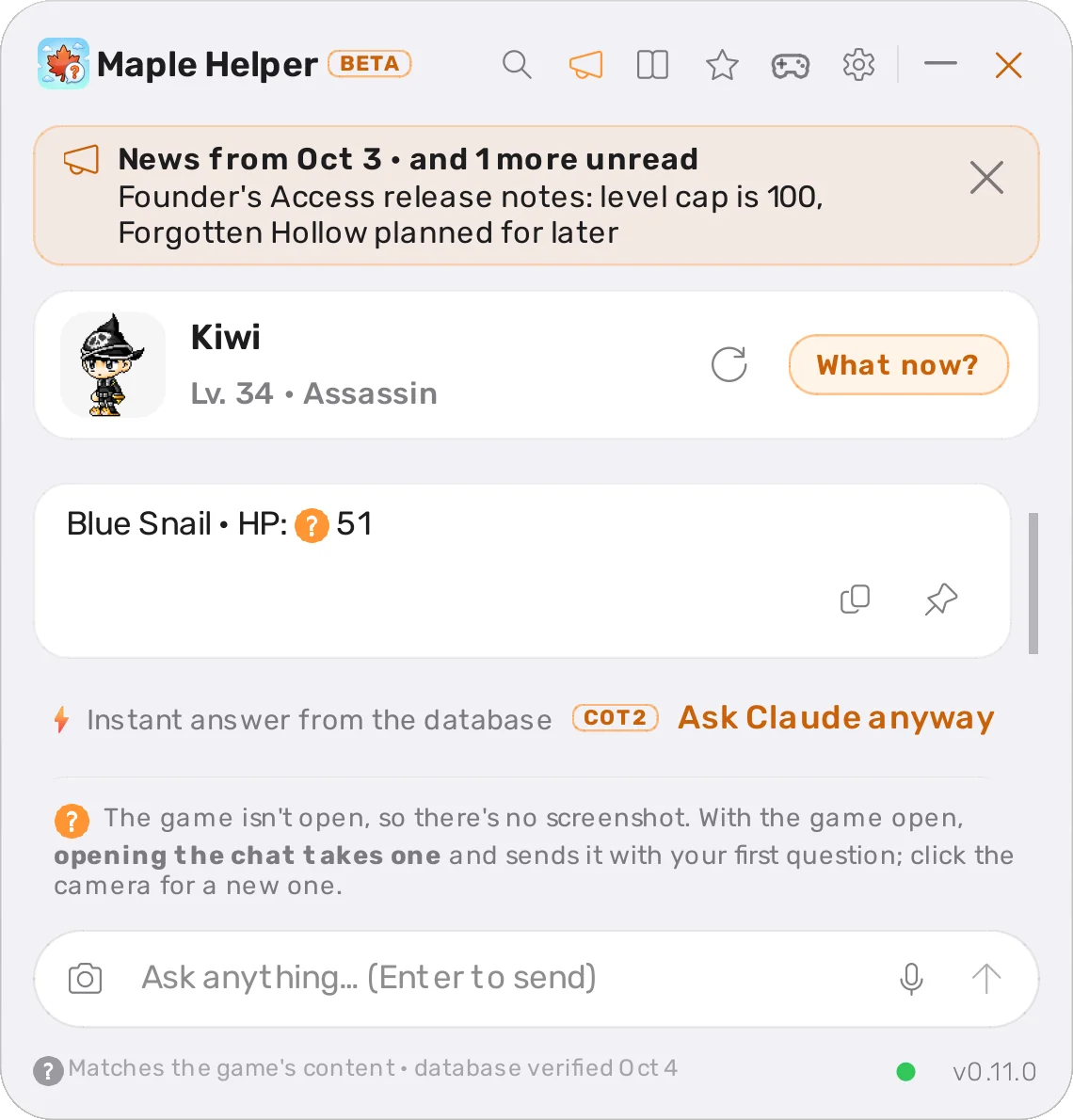
A clean glass look with orange as the only color. Pick light or dark in settings.
The game database updates in the background. On Windows the app updates itself too; on macOS you get a notice with a link to the new version.
Beside the game
The tools button in the chat opens a window that sits next to the game. Everything in it is worked out from the database and your character, without asking the AI or waiting.
The best maps for your level, ranked: hit chance, hits to kill, EXP and the kills left to level up. The grind tracker measures EXP and mesos an hour from screenshots.
In the calculator, pick a monster to see the ACC you need to never miss, and one tap takes you to the way there.

Who drops each item, where and at what level. Monsters that drop what your quests, recipes and starred items need come first, then what an NPC pays most for. A farm session counts what lands in your bag.

A full card for every quest: where you get it, what to do, what to bring and where to get it, who you finish with and what you get. Daily and weekly quests come back by themselves, and you can jump to the quest you need to finish first.

Six professions: the teacher, the quests, and every recipe by level, searchable by name or ingredient. Beside each ingredient: who drops it and what it sells for.

The Henesys and Kerning City quests by citizenship grade, how to get each and what to do, and the town the guide recommends for your job.

Every pet line by line: lifespan, hunger, commands to level 30 and the fastest command at each stage, its Cash Shop price, and the skills you can buy for it.

Open your inventory, and the app names every item and says what to do with it: keep it for a quest, a recipe or as gear, or sell it to an NPC or on the Free Market, and for how much. No AI, straight from the database.

The AP, SP and gear tables from your class guide, your level's row highlighted, and a table for each 2nd job.
NPC prices and a live Free Market median from players' reports, for every item that trades.
From any monster, item or NPC, one tap to the way there, hit & damage, farming and prices. Every term has a ? that explains it, and every picture grows on hover.
Install
Setup takes a few minutes. The app walks you through every step, including installing and connecting your AI, right inside the app.
Windows
The warning shows up because the installer isn't code-signed yet (signing costs money). The code is open on GitHub for anyone who wants to check it.
macOS
MapleStory Classic World has a Mac version too: install the game, and Maple Helper finds its window on its own.
Privacy and safety
Stays on your computerSettings, characters, chat history, voice recordings and the game database. No ads, no tracking.
Goes to the AI you chose, only when you askYour question, a screenshot of the game window, and the context needed to answer: your character's details, the recent conversation and short summaries of earlier ones. When you close a chat, it may be sent once more to summarize it for next time.
Never sent at allInstant answers from the database and voice transcription. Both happen on your computer.
Maple Helper only looks at the screen, like a screenshot tool. It opens its own window on top of the game, and that's it.
It's an unofficial tool, not affiliated with Nexon. We can't promise how the game's rules will treat helper apps, so use it at your own risk.
FAQ
The app is free and its code is open on GitHub. The AI you choose (Claude, ChatGPT, Gemini or Grok) gives the harder answers, on your own account: Claude Pro or Max, a paid ChatGPT plan, your Google account for Gemini, or a Grok account (a free one works, with a limited quota). A pay-as-you-go API key works too. Instant answers from the database don't count against your plan.
Maple Helper only takes screenshots, like any screenshot tool. It doesn't read the game's memory or files, doesn't press keys and doesn't play for you.
Still, it's an unofficial tool with no connection to Nexon, and nobody can promise what the game's policy will be. Use it at your own risk.
The installer isn't code-signed yet, so SmartScreen warns about an unrecognized app. Click "More info", then "Run anyway". The code is open on GitHub, and every update is checked against a checksum before it's installed.
From NiaMeowDB's public database, credited in the app. A copy of the database is kept on your computer and updates itself, and when it does, the app shows you what changed.
Yes, on macOS 12 or later with Apple Silicon. MapleStory Classic World runs on Mac too, and Maple Helper finds the game window by its title.
Only when you ask, and only to the AI you chose (Anthropic's Claude, OpenAI's ChatGPT, Google's Gemini or xAI's Grok): your question, a screenshot of the game window, and the context needed to answer (your character's details, the recent conversation and short summaries of earlier ones). Settings, the full history and voice recordings are kept on your computer. When you close a chat, it may be sent once more to summarize it for next time.
On Windows the app updates itself in the background. On macOS a notice in the menu links to the new version. The game database updates itself on both.

Download it, connect your AI, and click the Maple Helper icon next time you're in the game.